
苏米注:Hermes Agent 是 GitHub 上火爆的开源 AI Agent 工具,由 Nous Research 开发。这篇教程我整理了完整的安装指南和常见踩坑解决方案,适合零基础上手的用户。
一、Hermes Agent 是什么
Hermes Agent 是由 Nous Research 开源的 AI Agent 命令行工具,是一个跑在终端里的 AI 助手。它能真正操控你的电脑:
- 搜索网页、读写文件
- 执行命令行操作
- 接入 Telegram、Discord、微信等聊天平台
- 设置定时任务
- 语音交互
典型使用场景:
- "帮我查一下今天 Hacker News 上 AI 相关的新闻,整理成摘要"
- "把我桌面上的所有 PDF 文件按时间排序"
- "帮我写一个部署脚本,然后执行它"
- "每天早上 9 点把今天的天气发到我的 Telegram"
系统支持情况
| 系统 | 支持情况 | 安装难度 |
|---|---|---|
| Linux(Ubuntu/Debian/Fedora 等) | ✅ 完全支持 | 简单 |
| macOS | ✅ 完全支持 | 简单 |
| Windows WSL2 | ✅ 完全支持 | 需先装 WSL2 |
| Android(Termux) | ✅ 支持(功能缩减) | 中等 |
| 原生 Windows | ❌ 不支持 | — |
苏米注:原生 Windows 必须装 WSL2,官方明确不会开发 Windows 原生版本。
二、安装方式总览
| 方式 | 适用人群 | 安装时间 | 难度 |
|---|---|---|---|
| 一键安装 | Linux/macOS/WSL2 用户 | 2-5 分钟 | 零难度 |
| Termux 安装 | 安卓手机用户 | 10-15 分钟 | 中等 |
| 手动安装 | 想深度定制/遇到问题用户 | 15-30 分钟 | 需要耐心 |
最佳实践:推荐新手用一键安装,自动处理 99% 的情况。
三、方式一:一键安装(推荐)
适用系统:Linux、macOS、Windows WSL2
第一步:打开终端
- macOS:按 Command + Space,搜索"终端"
- Linux:按 Ctrl + Alt + T
- Windows WSL2:在开始菜单找"Ubuntu"或"WSL"
第二步:运行安装命令
curl -fsSL https://raw.githubusercontent.com/NousResearch/hermes-agent/main/scripts/install.sh | bash安装脚本会自动检测并安装以下内容:
- uv — 超快的 Python 包管理器,比 pip 快 10 倍以上
- Python 3.11 — Hermes 的运行环境
- Node.js v22 — 用于浏览器自动化和 WhatsApp 桥接
- ripgrep — 比 grep 快 5-10 倍的文件搜索工具
- ffmpeg — 音频/视频处理工具,语音合成需要
- Git — 代码版本管理
第三步:重新加载 Shell
source ~/.bashrc   # bash shell
source ~/.zshrc    # zsh shell
第四步:验证安装
hermes version
hermes doctor
hermes doctor 会检查 Python 版本、系统工具、API 密钥配置和各功能模块状态。
四、配置 AI 模型
安装完成后,需要配置 AI 模型:
hermes model这会启动交互式界面,让你选择 AI 提供者和模型。
推荐新手用 OpenRouter
OpenRouter 是聚合平台,一个 API key 可访问几十种 AI 模型,有免费额度适合试用。
- 注册地址:https://openrouter.ai
- 复制 API key 填入向导即可
模型选择要求
踩坑记录:Hermes Agent 要求模型至少有 64,000 token 的上下文窗口。如果模型上下文太小,无法有效工作。
推荐模型:
- Anthropic Claude 3.5 Sonnet / Opus
- OpenAI GPT-4o / GPT-4 Turbo
- Google Gemini 1.5 Pro
- DeepSeek Chat V3
- Qwen(通义千问)系列
- Llama 3 70B 及以上
苏米注:如果使用本地 Ollama 模型,需要设置 context size:
ollama serve --ctx-size 65536否则 Hermes 会报错拒绝启动。
第一次聊天
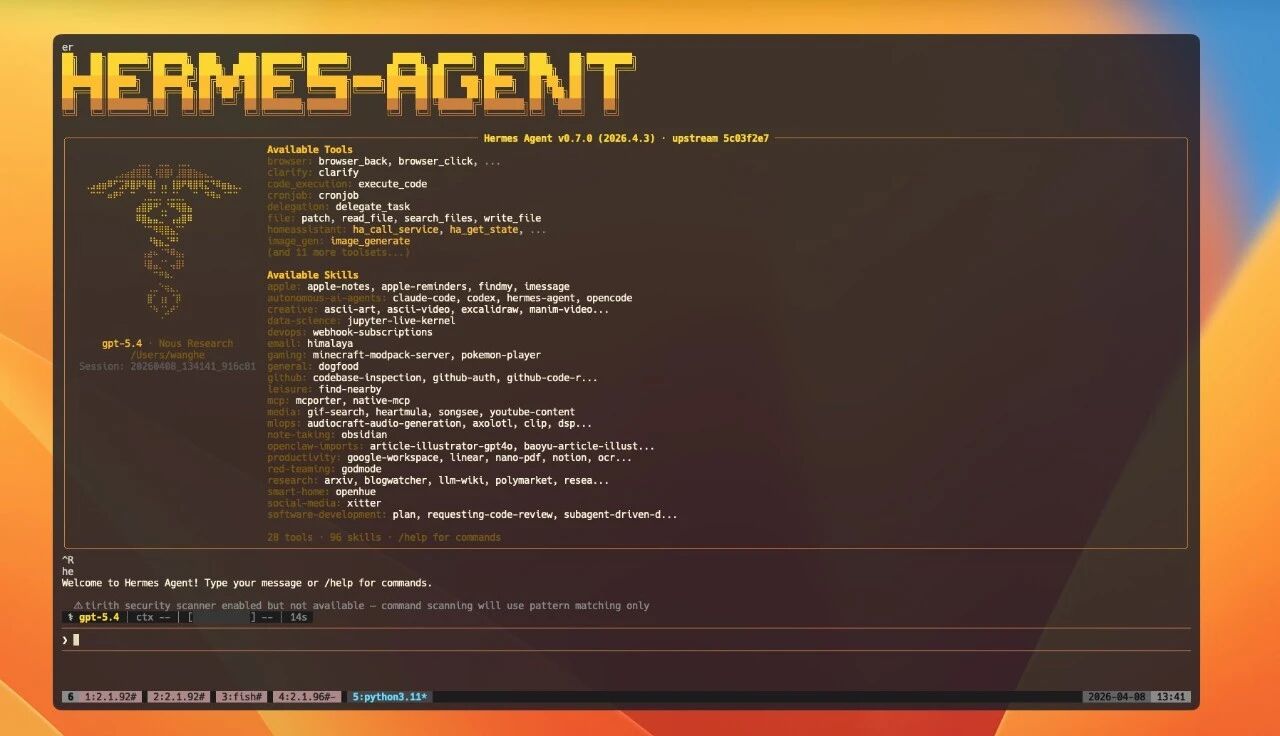
hermes看到欢迎界面后,输入问题试试:
What can you help me with?
帮我总结一下当前目录里有哪些文件
五、方式二:安卓手机安装(Termux)
苏米注:Termux 是安卓上模拟 Linux 环境的 App,装上后手机就像有了一台小型 Linux 服务器。
功能限制说明
能用的:Hermes CLI 核心功能、定时任务、终端后台运行、MCP、AI 记忆功能
不能用的:全量包、语音输入/输出、浏览器自动化、Docker 容器隔离
Step 1:安装 Termux
从 GitHub 下载最新版(不能从 Google Play 装,版本太旧):
- 下载地址:https://github.com/termux/termux-app/releases
- 下载 APK 文件安装
Step 2:初始设置
pkg update && pkg upgrade -yStep 3:安装系统依赖
pkg install -y git python clang rust make pkg-config libffi openssl nodejs ripgrep ffmpegStep 4:克隆 Hermes 代码
git clone --recurse-submodules https://github.com/NousResearch/hermes-agent.git
cd hermes-agent
Step 5:创建虚拟环境
python -m venv venv
source venv/bin/activate
export ANDROID_API_LEVEL="$(getprop ro.build.version.sdk)"
python -m pip install --upgrade pip setuptools wheel踩坑记录:ANDROID_API_LEVEL 环境变量必须设置,否则某些 Rust 扩展包会编译失败。
Step 6:安装 Hermes
python -m pip install -e '.[termux]' -c constraints-termux.txt苏米注:必须用 .[termux] 专用包,不能用 .[all],因为 voice 依赖在安卓上无法编译。
Step 7:添加到 PATH
ln -sf "$PWD/venv/bin/hermes" "$PREFIX/bin/hermes"Step 8-10:验证、配置、使用
hermes version
hermes doctor
hermes model
hermes
六、方式三:手动安装
适合想搞清楚每一步或遇到 bug 需要定位的用户。
Step 1:确认 Git 已安装
git --versionStep 2:克隆代码仓库
git clone --recurse-submodules https://github.com/NousResearch/hermes-agent.git
cd hermes-agent
Step 3:安装 uv
curl -LsSf https://astral.sh/uv/install.sh | sh
source ~/.bashrc
Step 4:创建虚拟环境
uv venv venv --python 3.11
export VIRTUAL_ENV="$(pwd)/venv"
Step 5:安装 Python 依赖
# 全量包
uv pip install -e ".[all]"

# 核心功能(推荐配置低的机器)
uv pip install -e "."

# 按需安装
uv pip install -e ".[messaging,cron]"  # 消息平台 + 定时任务
uv pip install -e ".[voice]"           # 语音输入输出
uv pip install -e ".[mcp]"             # MCP 协议支持
Step 6-10:后续配置
# 创建配置目录
mkdir -p ~/.hermes/{cron,sessions,logs,memories,skills,pairing,hooks,image_cache,audio_cache,whatsapp/session}
cp cli-config.yaml.example ~/.hermes/config.yaml
touch ~/.hermes/.env

# 配置 API 密钥
nano ~/.hermes/.env

# 添加到 PATH
mkdir -p ~/.local/bin
ln -sf "$(pwd)/venv/bin/hermes" ~/.local/bin/hermes
echo 'export PATH="$HOME/.local/bin:$PATH"' >> ~/.bashrc
source ~/.bashrc

# 验证
hermes version
hermes doctor
七、常见问题解决方案
Q1:Windows 用户装不上
解决:必须安装 WSL2
wsl --install重启后在 Ubuntu 终端里运行 Hermes 安装命令。
Q2:提示 curl: command not found
解决:
# macOS
/bin/bash -c "$(curl -fsSL https://raw.githubusercontent.com/NousResearch/hermes-agent/main/scripts/install.sh)"

# Linux
sudo apt install curl    # Ubuntu/Debian
Q3:提示 hermes: command not found
解决:PATH 没配好
source ~/.bashrc
which hermes
echo $PATH
Q4:提示 API key not set
解决:
hermes model
# 或
nano ~/.hermes/.env
# 添加 OPENROUTER_API_KEY=你的 key
Q5:模型报错 context window too small
解决:换用上下文≥64K 的模型,或 Ollama 设置:
ollama serve --ctx-size 65536Q6:安装.[all] 报错(安卓)
解决:用 Termux 专用包
python -m pip install -e '.[termux]' -c constraints-termux.txtQ7:jiter/maturin 编译失败(安卓)
解决:设置 ANDROID_API_LEVEL
export ANDROID_API_LEVEL="$(getprop ro.build.version.sdk)"Q8:hermes doctor 报缺 ripgrep
解决:
# macOS
brew install ripgrep nodejs

# Ubuntu/Debian
sudo apt install ripgrep nodejs

# Termux
pkg install ripgrep nodejs
Q9:Python 包编译失败
解决:安装编译工具链
# Ubuntu/Debian
sudo apt install build-essential python3-dev rustc

# macOS
xcode-select --install
brew install rust

# Termux
pkg install clang rust make pkg-config libffi openssl
Q10:网速太慢安装中断
解决:使用镜像加速
# Git 克隆加速
git clone https://ghproxy.com/https://github.com/NousResearch/hermes-agent.git

# pip 加速
pip install xxx -i https://pypi.tuna.tsinghua.edu.cn/simple
八、开始使用 Hermes
基本操作
hermes尝试这些问题:
- "当前目录下有哪些文件?"
- "帮我查一下今天 AI 圈有什么新闻"
- "用中文介绍一下你自己"
斜杠命令
| 命令 | 功能 |
|---|---|
| /help | 显示所有工具和命令 |
| /tools | 列出当前可用的工具 |
| /model | 切换模型 |
| /personality | 切换人格(海盗、诗人等) |
| /save | 保存当前会话 |
进阶功能
- 接入 Telegram:
hermes gateway setup选择 Telegram - 接入 Discord:
hermes gateway setup选择 Discord - 定时任务:配置 cron 表达式,如
0 9 * * *表示每天 9 点 - 语音模式:
pip install "hermes-agent[voice]"然后/voice on - 安装技能包:
hermes skills search kubernetes
参考资源:
- 官方文档:https://hermes-agent.nousresearch.com
- GitHub 仓库:https://github.com/NousResearch/hermes-agent
- Discord 社区:https://discord.gg/NousResearch
- Skills Hub:https://agentskills.io